Virtual desktops (VDI, DaaS) and servers from Infosaic Cloud, since 2001

Guides / Technology and platform

How to set up your Mac to work with Virtual Desktop

How-to guide / 1 min read

A Mac on a desk in a bright office

A Mac on a desk in a bright office

Our virtual desktop service provides fast and reliable service from any device. We have taken care of both the reliability of your data and a quick, easy connection. You can work with a remote desktop from macOS by following the instructions below.

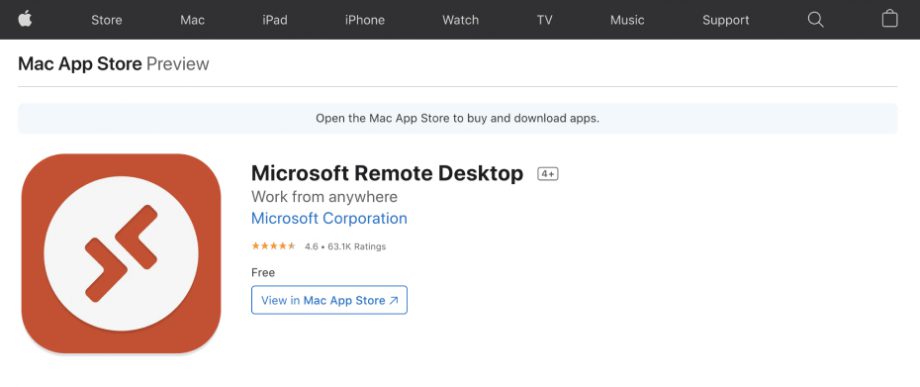
  1. Install the appDownload the Microsoft Remote Desktop app from the App Store.
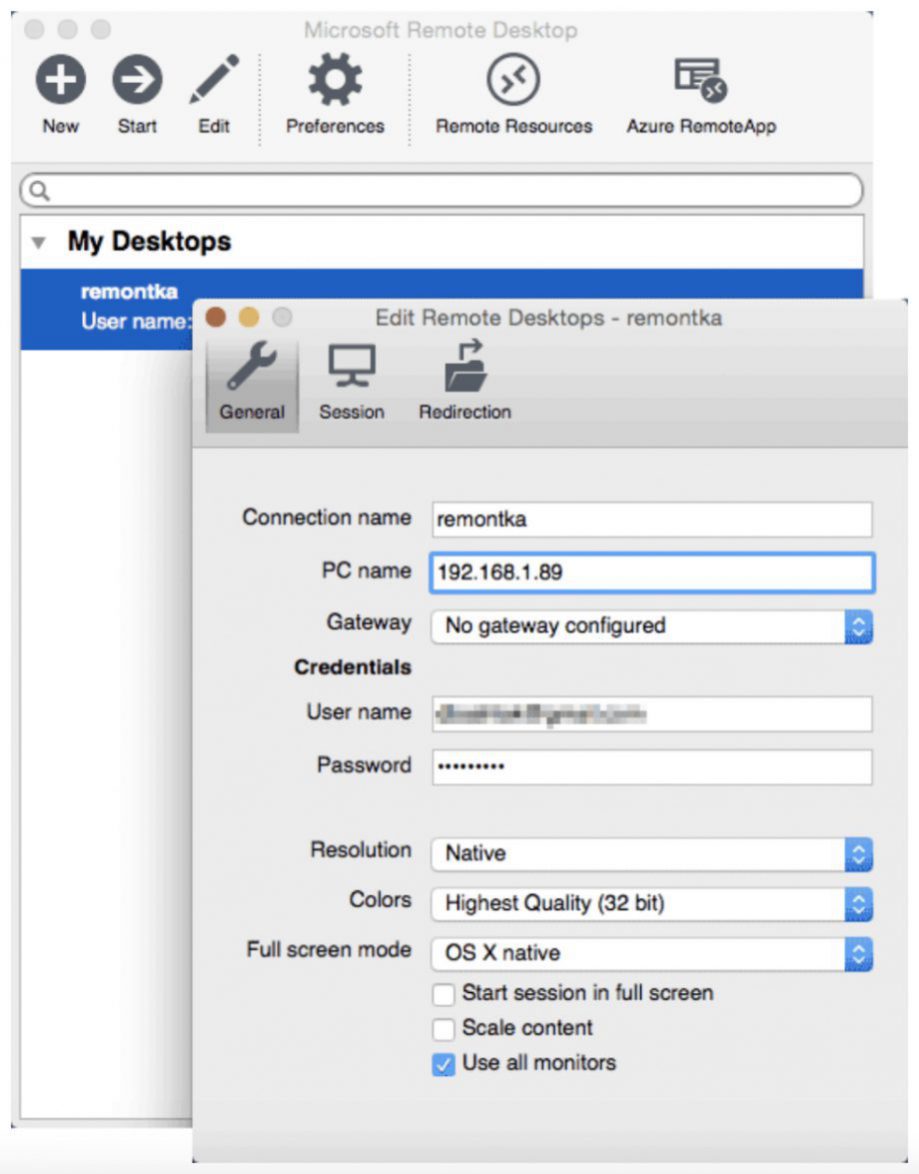
  2. Add the remote computerAfter launching the app, click the plus button to add the remote computer and give it any name.
  3. Enter the address and sign inEnter the IP address in the PC Name field, then enter your user name and password.

You can also set screen parameters and other details. After that, close the settings window and click the remote desktop name in the list to connect. If everything has been done correctly, you will see your virtual desktop on your Mac.

For any help, you can always get in touch by email.

A desktop of its own, delivered instantly

Four packages from $11.95 a month on a server-class host, with a dedicated public IP, unmetered traffic and administrator rights. The login is in your inbox the moment you sign up.

An AI agent working at its own Windows desktop