Guides / Technology and platform
How to Enable Sound on Your Virtual Desktop
How-to guide / 1 min read

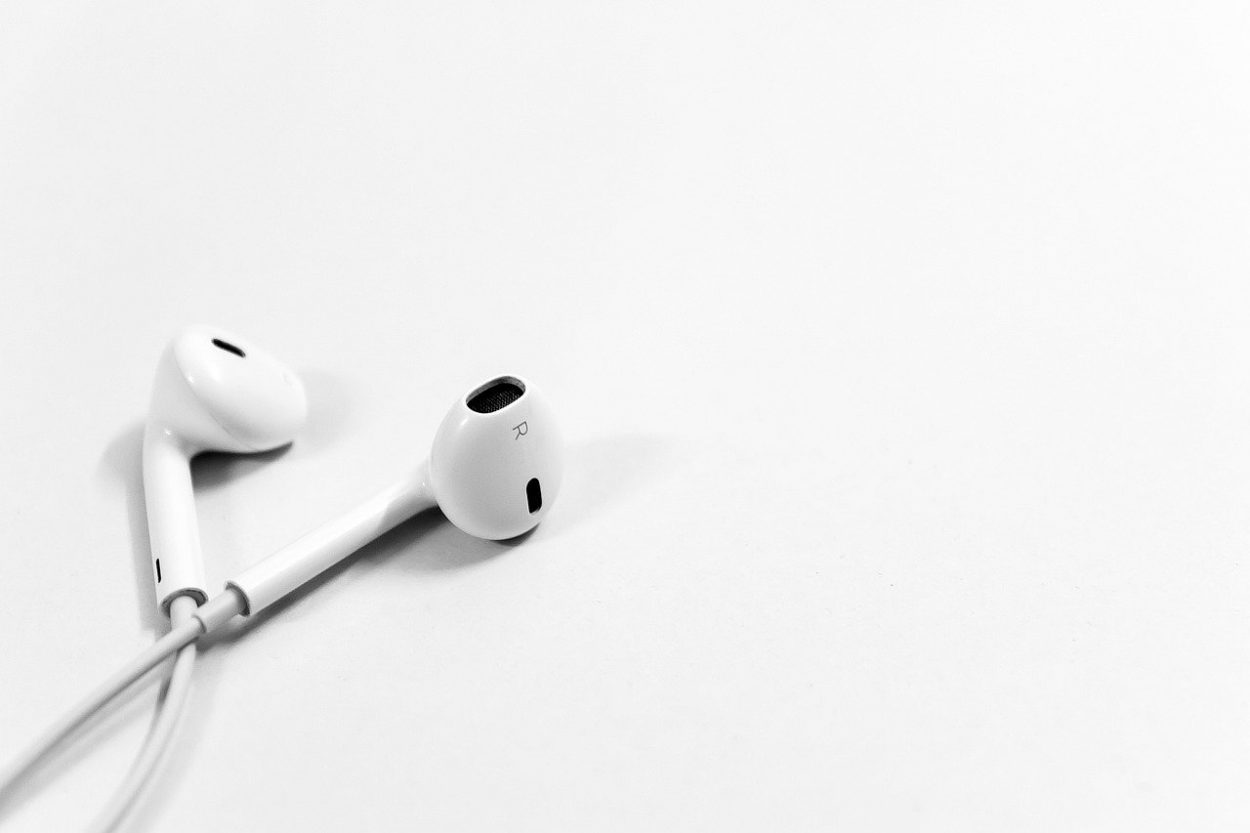
Headphones on a desk beside a laptop
In an ongoing effort to provide the best service to our clients, we try to inform our users about the various features of our products. Below we address one of the most common features that can make your work with the virtual desktop a really pleasant experience: enabling sound. Sound is helpful if you want to listen to music or take part in a conference held through your virtual desktop.
Configuring sound is easy. Follow the steps below to get it going. To work with sound you need to connect to your machine using an RDP client.
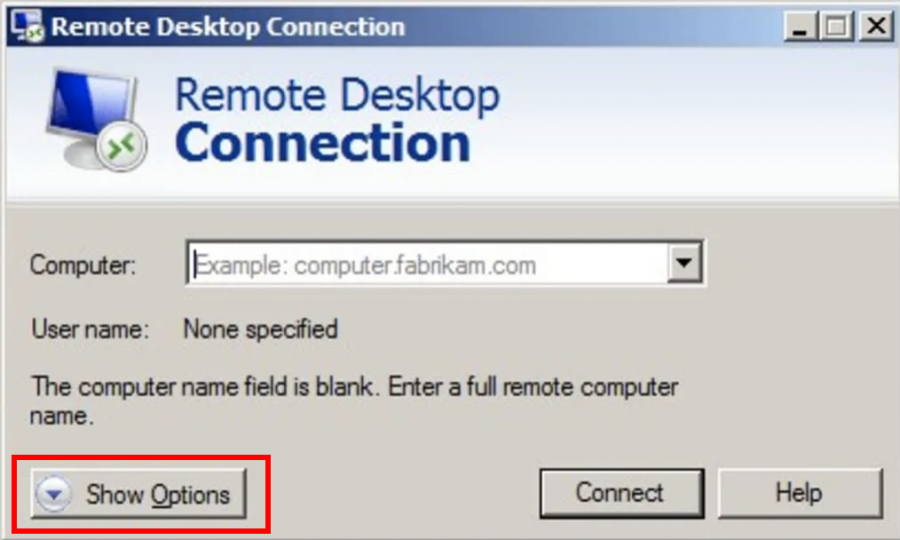
- Open Remote Desktop ConnectionUse the search box to find Remote Desktop Connection.
- Show the optionsBefore connecting to your session, press the Show Options button.
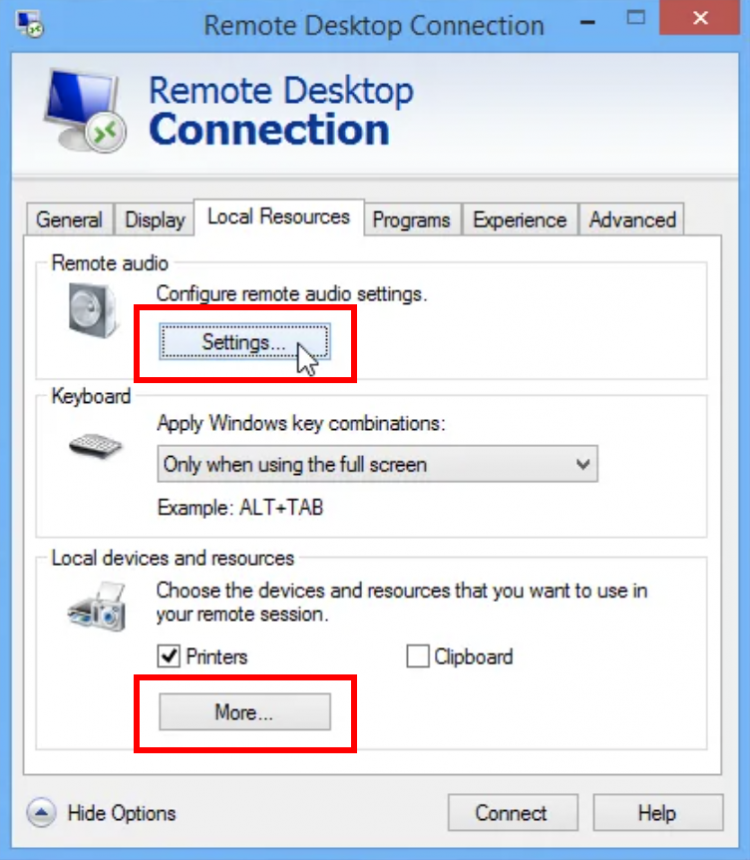
- Open Local ResourcesClick the Local Resources tab.
- Turn the audio onIn the first section, called Remote Audio, click Settings and switch the recording on.
- Add anything else you needIf you need more devices - a USB drive, SD cards, video capture devices or ports - add them in the lower section called Local devices and resources.

The local resources tab of Remote Desktop Connection
We are always here for you. Contact us by email if you need any help.
A desktop of its own, delivered instantly
Four packages from $11.95 a month on a server-class host, with a dedicated public IP, unmetered traffic and administrator rights. The login is in your inbox the moment you sign up.