
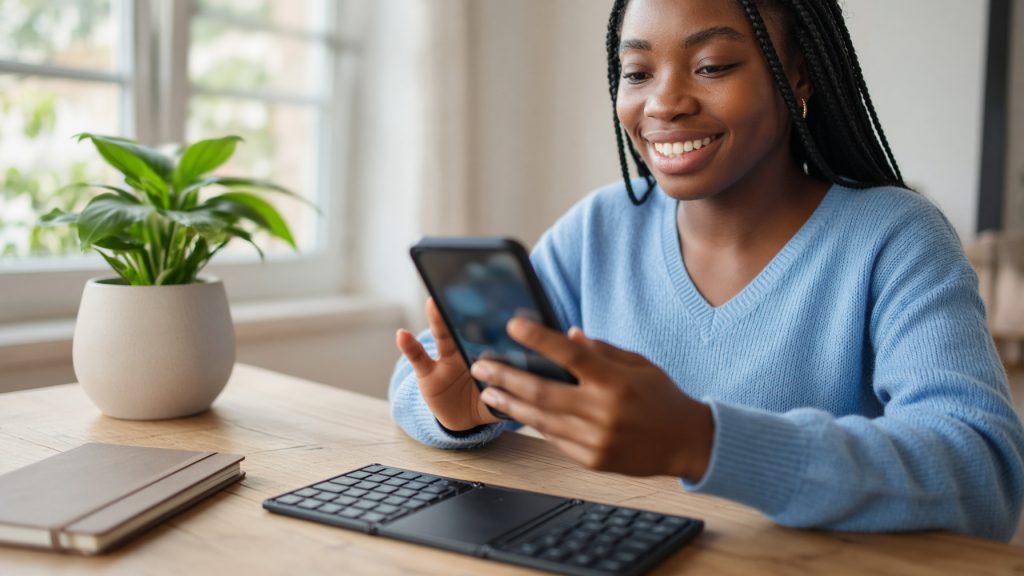
Short answer: Install Windows App free from Google Play, tap + → Add PC, enter the address of your cloud desktop and your Windows username and password, then tap the tile. Pair a small Bluetooth keyboard and a phone becomes a surprisingly capable workstation.
Applies to: Android phones and tablets · Infosaic cloud desktops · connecting by RDP
Android has had a first-party Microsoft remote desktop client for years. It is now called Windows App, it is free, and it connects directly to a cloud desktop by address — no company account, no subscription, no intermediate service.
On a tablet with a keyboard it feels close to a laptop. On a phone it is best thought of as a remote control: good for checking on something, approving work, restarting a stuck program, or fixing one file before a meeting.
How do I install Windows App on Android?
Open Google Play and search for Windows App. Check that the developer line reads Microsoft Corporation — several unrelated remote desktop apps use similar names.
The app requires a reasonably recent version of Android. If Play says your device is not compatible, the device is too old for the current app; you can still reach the desktop through browser access in Chrome, which needs nothing installed.
You do not need a Microsoft account. The credentials you enter are the Windows account on your cloud desktop.
How to add your cloud desktop
- Open Windows App and tap the + button.
- Choose Add PC.
- In PC name, type the address of your cloud desktop exactly as it appears in your control panel.
- Tap Username → Add user account and enter your Windows username and password. These are the desktop credentials, not the control panel ones.
- Optionally set a friendly name so the tile is easy to recognise.
- Tap Save, then tap the tile. Accept the certificate warning the first time and choose to remember it.
Making a small screen workable
Three changes make the difference between fiddly and comfortable:
- Pair a Bluetooth keyboard. A folding keyboard is the size of a phone and turns typing from painful into ordinary.
- Turn the phone landscape. Windows is a landscape operating system and dialogs are laid out for width.
- Switch to mouse pointer mode in the session toolbar. A real pointer with a left and right button beats trying to hit a small button with a fingertip.
The gestures themselves are quick to learn: tap is a left click, tap and hold is a right click, two fingers scroll, pinch zooms, and swiping in from the edge opens the app’s own toolbar where the keyboard, the pointer mode and the disconnect button live.
On mobile data: a remote desktop session is far lighter than video, but it is not free. If you are on a metered plan, close the session when you finish rather than leaving it open in the background — and remember that disconnecting leaves your programs running on the desktop.
What about a Chromebook?
Chromebooks that support Google Play run the same Android app. Install Windows App from the Play Store on the Chromebook, add the PC in exactly the same way, and the session opens in its own ChromeOS window. There is a separate guide for that in the related articles below.
If it does not connect
- Re-read the address character by character. A typo produces the same error as a desktop that is switched off.
- Turn Wi-Fi off and retry on mobile data. If it connects, the Wi-Fi network was blocking the RDP port — guest, hotel and workplace networks do this routinely.
- Try browser access in Chrome. If the desktop opens there, it is running normally and the block is on the network.
- Check the username. The Windows account and the control panel account are separate.
Questions and answers
Which app do I need on Android?
Windows App, published by Microsoft Corporation, free on Google Play. It is the successor to the app previously called Microsoft Remote Desktop.
Does it cost anything?
No. The app is free and connecting to your Infosaic cloud desktop with it costs nothing extra.
Do I need a Microsoft account?
No. You add the desktop by address and sign in with the Windows username and password for that desktop.
How do I right-click on Android?
Tap and hold, or switch the session to mouse pointer mode from the toolbar and use a real right-click.
Can I use a Bluetooth keyboard and mouse?
Yes, and it makes a large difference. Pair them with Android first and they work inside the session automatically.
Can I copy and paste between Android and my cloud desktop?
Yes, for text, in both directions. Copy on one side and paste on the other as normal.
How much data does a session use?
Much less than video streaming, but it is not negligible over hours. Close the session when you have finished if you are on a metered plan.
Will my programs keep running if I close the app?
Yes. Closing the app disconnects the session but leaves the desktop and everything open on it running, ready for when you reconnect.
Related articles
- What you need to connect to your cloud desktop by RDP
- iPhone and iPad: connect to your cloud desktop
- Disconnect or sign out? What happens to your cloud desktop
- RDP will not connect: how to fix it
Still stuck?
Open a support request from your control panel — that is the fastest route, because it reaches the team who can already see your account and your desktop. You can also email [email protected].